
Tutorial • May 5, 2026
How to Rotate PDF Pages Without Uploading
Fix upside-down scans and sideways pages entirely in your browser. No servers. No sign-up. No waiting for a download link from a cloud service you've never heard of.
Here is the scenario. You scan a document. You open the PDF. Page three is sideways.
Not slightly off. Not a rendering glitch. Sideways. The kind of sideways that makes you tilt your head like a confused dog while a client is watching.
The standard fix most people reach for is an online PDF tool. They search "rotate PDF online," land on one of the big cloud services, and click upload.
The results are... not entirely costless.
That PDF just left your device. It traveled to a server in a datacenter you cannot name, in a jurisdiction you did not agree to. The service processed it, and now it sits in a temporary storage bucket with a retention policy buried in page forty-seven of a terms-of-service document.
All to flip one page ninety degrees. That is the equivalent of driving your car to a mechanic in another city to adjust your rearview mirror.
Why Cloud PDF Tools Are the Wrong Tool for This Job
Cloud-based PDF tools are built around a server-side processing model. Your file travels to their infrastructure, gets processed, and gets returned. That round trip made sense in 2010 when browsers could not handle complex file operations.
Browsers have changed. The round trip has not.
Modern browsers ship with APIs powerful enough to read, parse, and rewrite PDF files entirely in memory. No network request. No temporary file on someone else's hardware. The computation happens inside the same tab where you opened the file, using your own CPU.
Which means sending a PDF to a remote server to rotate it is not a technical necessity. It is a business model.
Some platforms monetize through ads shown during the "processing" wait screen. Others sell storage upsells. A few have had documented data leaks involving user-uploaded documents. None of this is necessary when the operation runs in your browser in under a second.
What Actually Happens When You Rotate in the Browser
A PDF page has a property called a rotation value. It is stored as a number, 0, 90, 180, or 270, inside the page's dictionary. That is the entire mechanism.
When a browser-based tool like OnDevicePDF rotates a page, it reads that value and writes a new one. The file never leaves RAM. There is no upload queue, no server queue, no cloud processing queue. The modified PDF is assembled in memory and handed directly to your browser's download handler.
The latency for a twenty-page document is closer to "blink" than "wait." Because no packets are crossing the internet.
How to Rotate PDF Pages Without Uploading: Step by Step
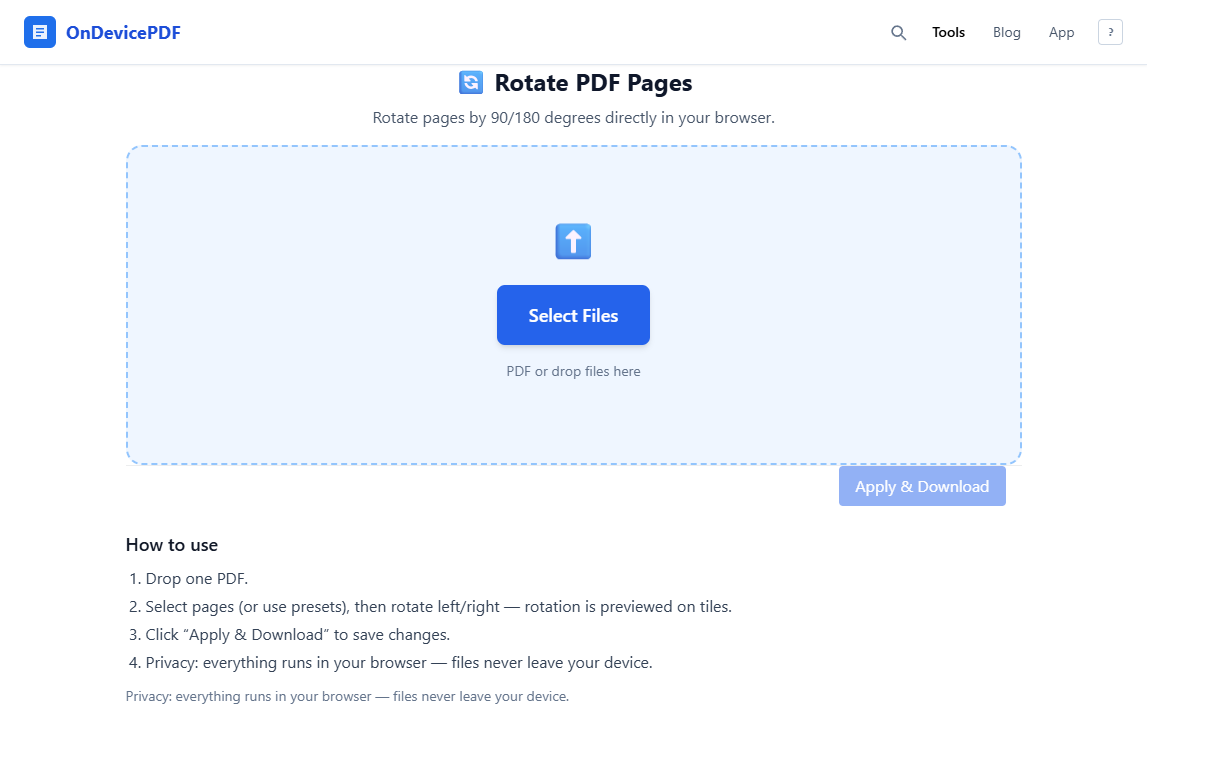
Open the Rotate PDF Pages tool. No account required. No email address. The tool does not ask because it does not need to.
- Drop your PDF onto the tool. Or click to browse. The file loads locally. Nothing is transmitted.
- Preview your pages. Thumbnails render directly from your file. You can see exactly which pages are sideways before touching anything.
- Select pages to rotate. Click individual pages, or select all. You can rotate one page or every page independently.
- Choose your rotation direction. 90 degrees clockwise, 90 degrees counterclockwise, or 180 degrees for upside-down pages.
- Download the result. The corrected PDF is generated in your browser and downloaded directly. The original file is unchanged on your device.
Five steps. No server handshake, no processing spinner with a progress bar that exists purely for psychological comfort. The spinner is real. The cloud handoff is the part that is not necessary.
Common Scenarios Where Page Rotation Matters
Scanned Documents With Mixed Orientations
Flatbed and feeder scanners frequently produce mixed-orientation output when someone loads pages inconsistently. You end up with a contract where pages one through five are portrait, page six is landscape, and page seven is upside down. Fixing all three at once in a browser tool takes roughly the same time as reading this sentence.
Spreadsheets and Diagrams Saved as Landscape PDFs
Wide tables and architectural diagrams are often exported in landscape orientation. When combined with portrait-oriented reports, the final document is disorienting. Rotating specific pages to match the surrounding content solves this without reprinting or re-exporting.
Photos and Images Embedded in PDFs
Mobile cameras attach EXIF orientation metadata to photos. PDF converters do not always honor it. The image ends up sideways inside the PDF even though it looked correct in your camera roll. Page-level rotation in the PDF fixes the display without touching the underlying image data.
Forms and Legal Documents
Law offices, HR departments, and healthcare workers deal with scanned forms constantly. These are also the documents that should never touch a cloud server. The rotation problem and the privacy requirement arrive together more often than not.
Fix your PDF pages right now.
No upload. No sign-up. Works offline.
Rotate PDF Pages Free - No Upload RequiredThe Difference Between "Free" and Actually Free
Most free online PDF tools are free in the way a "free" airport lounge is free. There is a catch. Usually it is a file size limit, a daily use cap, a watermark on the output, or an account wall that appears after you finish the work and are about to click download.
OnDevicePDF has none of those gates. The reason is structural, not generous. When you do not run server infrastructure to process files, you do not have per-file processing costs. There is no cloud bill proportional to your usage. The tool runs on your hardware.
No size limits. No daily caps. No watermarks. No account required. Not because the terms of service say so, but because the architecture makes those restrictions pointless.
It Works Offline
Once the tool loads in your browser, it does not need the internet again. The PDF library runs locally. You can disconnect from wifi, open a PDF, rotate pages, and download the result. The entire operation is self-contained.
This is useful on a plane. In a building with bad connectivity. In a hotel room where the network is technically present but functionally unreliable. In any situation where sending data to a remote server is either impossible or something you would prefer not to do.
Other Tools That Work the Same Way
Rotating pages is one operation. The same privacy-first, browser-only approach applies across the full OnDevicePDF toolkit.
- Reorder PDF Pages - drag and drop pages into any order, preview thumbnails, remove pages, all locally.
- Merge PDF - combine multiple PDFs into one without any of them leaving your device.
- Split PDF - extract individual pages or ranges, in the browser, with no upload.
- Compress PDF - reduce file size before sending, without sending the file to do it.
The Short Version
Rotating a PDF page is a one-line change to a number inside a file. It does not require a server, a cloud account, or an upload. Any tool that asks you to upload a file to do this is solving a problem that does not exist, at a cost you may not have priced in.
The Rotate PDF Pages tool handles it in your browser. The file stays on your device. The operation is instant.
Sometimes the right tool is the one that does nothing more than what you asked.